
GridCraft ArtCraft: Who Makes It and Where to Get It
See how GridCraft fits into the ArtCraft app family, where to find official downloads and release notes, and when to use the Launcher or browser build.
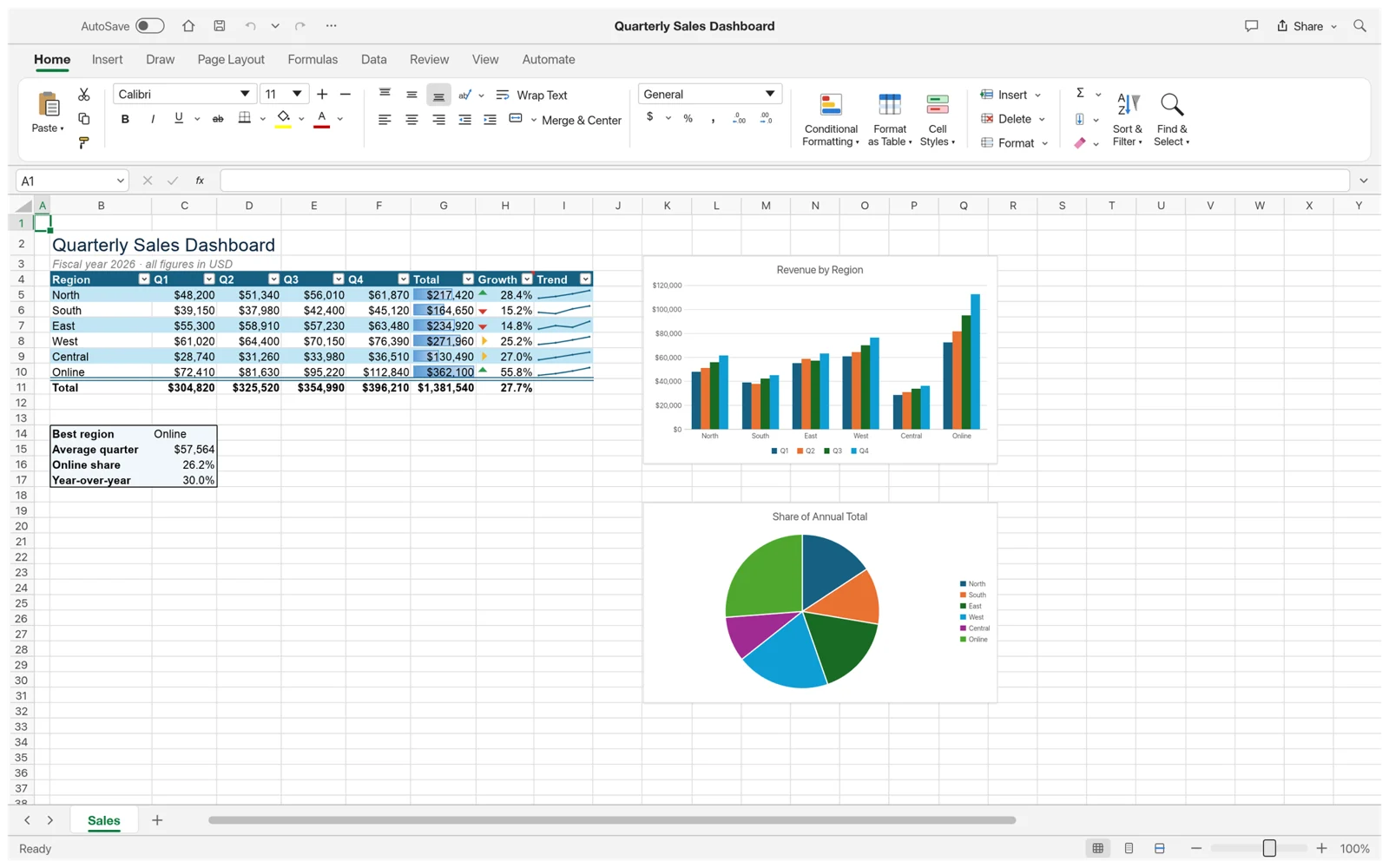
If you looked up GridCraft ArtCraft, you probably saw several names attached to the same spreadsheet: GridCraft on the app page, ArtCraft on the download site, and storytold/gridcraft on GitHub. GridCraft is the spreadsheet app. ArtCraft is the team behind it. The GitHub repository is where that team publishes the source, release files and release notes. Start with the official GridCraft page if you want an installer, or open the project repository if you want to follow development.
Where GridCraft fits in the ArtCraft family
ArtCraft publishes a collection of open-source desktop tools under the Crafting Apps name. GridCraft covers spreadsheets and data analysis. WordCraft handles word processing, DeckCraft handles slide presentations, and PdfCraft is for PDF work. A straightforward way to tell them apart is to start from the file and task you have. To edit a budget, recalculate a sales total or organize a table, choose GridCraft. To present those results in a slide deck, DeckCraft is the relevant app.
You may also see an ArtCraft Studio product page when searching for the team. That is ArtCraft’s image and video app. For spreadsheets, look for the GridCraft product name and the storytold/gridcraft repository. The app’s ribbon, formula bar and worksheet tabs are recognizable clues if a search result doesn’t clearly name the product. The dashboard in this article’s cover image is a GridCraft sample shown by the upstream project.
Choose the official destination for your task
- Install GridCraft on one computer. Open the official product page, scroll to Get GridCraft and choose the standalone package for your operating system and processor. This is a convenient route if GridCraft is the only Crafting App you need.
- Install and update several ArtCraft apps. Use the ArtCraft Launcher option on the product page. The Launcher manages the apps you choose to install. The Launcher and GridCraft are released separately, so check which product a version number refers to before using it in a support request.
- Check what changed or find a previous build. Use GridCraft Releases on GitHub. Start with the release tag, then read its notes and expand the assets for that release. Keeping the tag alongside a project or compatibility note makes it much easier to revisit your decision later.
- Try a workbook now. Open our GridCraft browser editor and choose a sample. GridCraft.me is an independent site that hosts the upstream web build and publishes practical tutorials. The ArtCraft team maintains the app and its official releases.
Read a GridCraft release without guessing
One GitHub release can contain multiple files for the same operating system. Compare the file names with your system type before downloading. On Windows, for example, the project page distinguishes x64 and ARM64 builds and lists both installer and portable options. The release may also contain a command-line package and a WebAssembly bundle. Those are useful for scripts or hosting the web app, while the standalone desktop package is the one to choose for everyday spreadsheet work.
When matching documentation to an installation, write down three details: the GridCraft release tag, the file you downloaded, and the operating system and architecture. A label such as “GridCraft on Windows” leaves out whether the test used x64 or ARM64, and whether it used the current release or an earlier one. With those details at hand, you can compare your setup with the release notes or give an upstream maintainer enough context to investigate a problem.
If you already use a workbook in another spreadsheet app, set aside an untouched copy before trying an update or a new build. Pick a few values, formulas and charts that matter to your work. Check them before and after you save a separate XLSX copy. This is especially helpful when one workbook is edited by several people using different apps and versions. Our XLSX compatibility guide walks through the checks in more detail.
A quick way to compare the browser and desktop builds
The browser editor is a useful starting point when you want to see the interface without installing anything. Open the monthly budget sample and select a total to find its formula. Change a single expense and check that the total moves by the same amount. Use File → Save As to keep a copy before closing the tab. The online editor guide shows the save workflow in more detail.
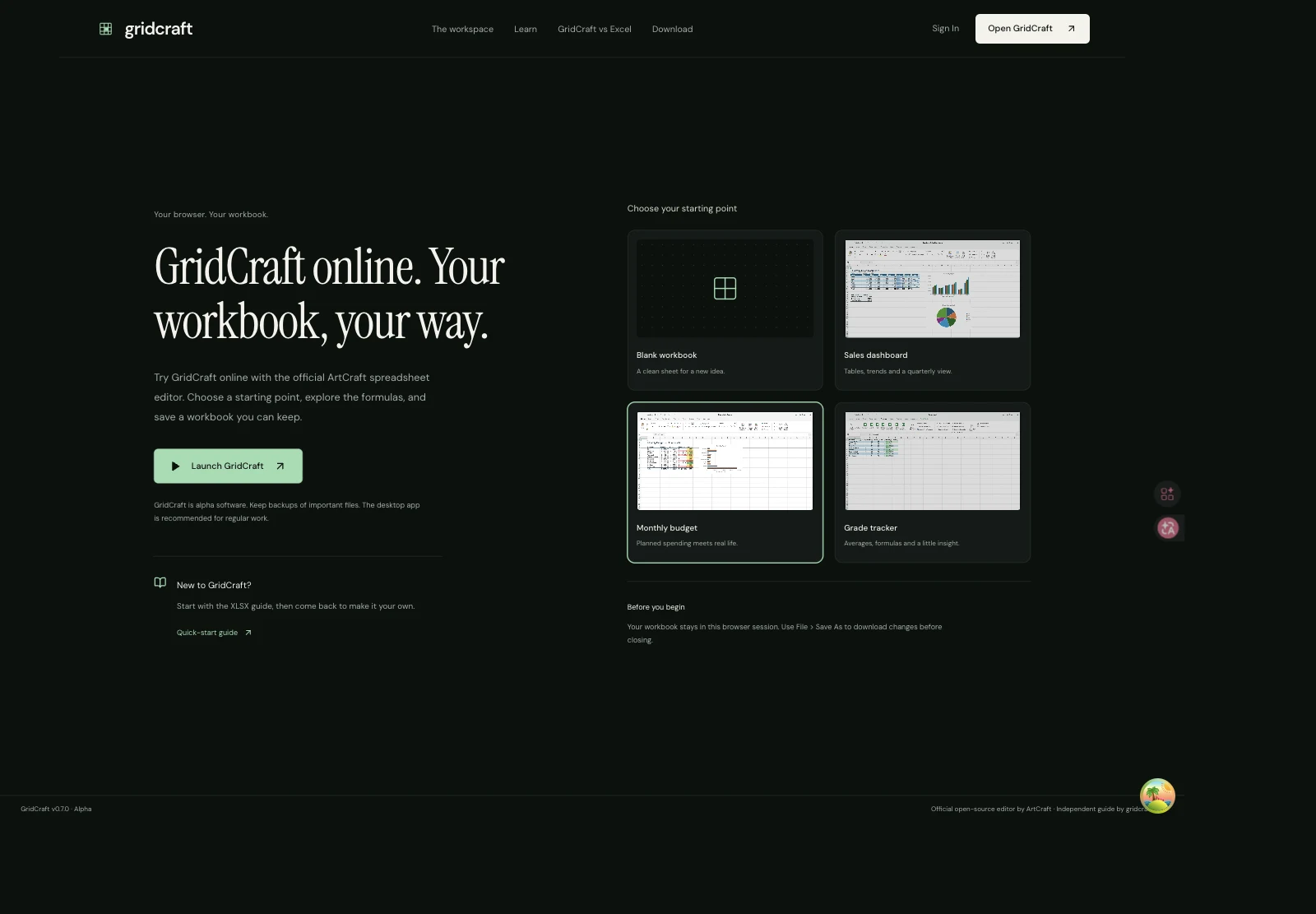
The sample picker on GridCraft.me launches the upstream web build.
If you later install the desktop app, reopen the copy you made in the browser and check the same formula again. That gives you one familiar workbook to compare across builds. For regular work, repeat the check with a copy of a file you actually use. Checking your own formulas and charts is a better guide to whether the app fits your workflow than counting features on a product page.
Where to look when something goes wrong
For a problem with the app itself, check the upstream issue tracker for an existing report. If you report a new issue, include the version, operating system and steps, and use a tiny sample with made-up data when a workbook is needed. For a problem with something on GridCraft.me, such as a broken tutorial link, use our contact page.
For a broader tour of the spreadsheet, continue with What Is GridCraft?. For the editor, guides and desktop download links in one place, visit the GridCraft.me homepage.