
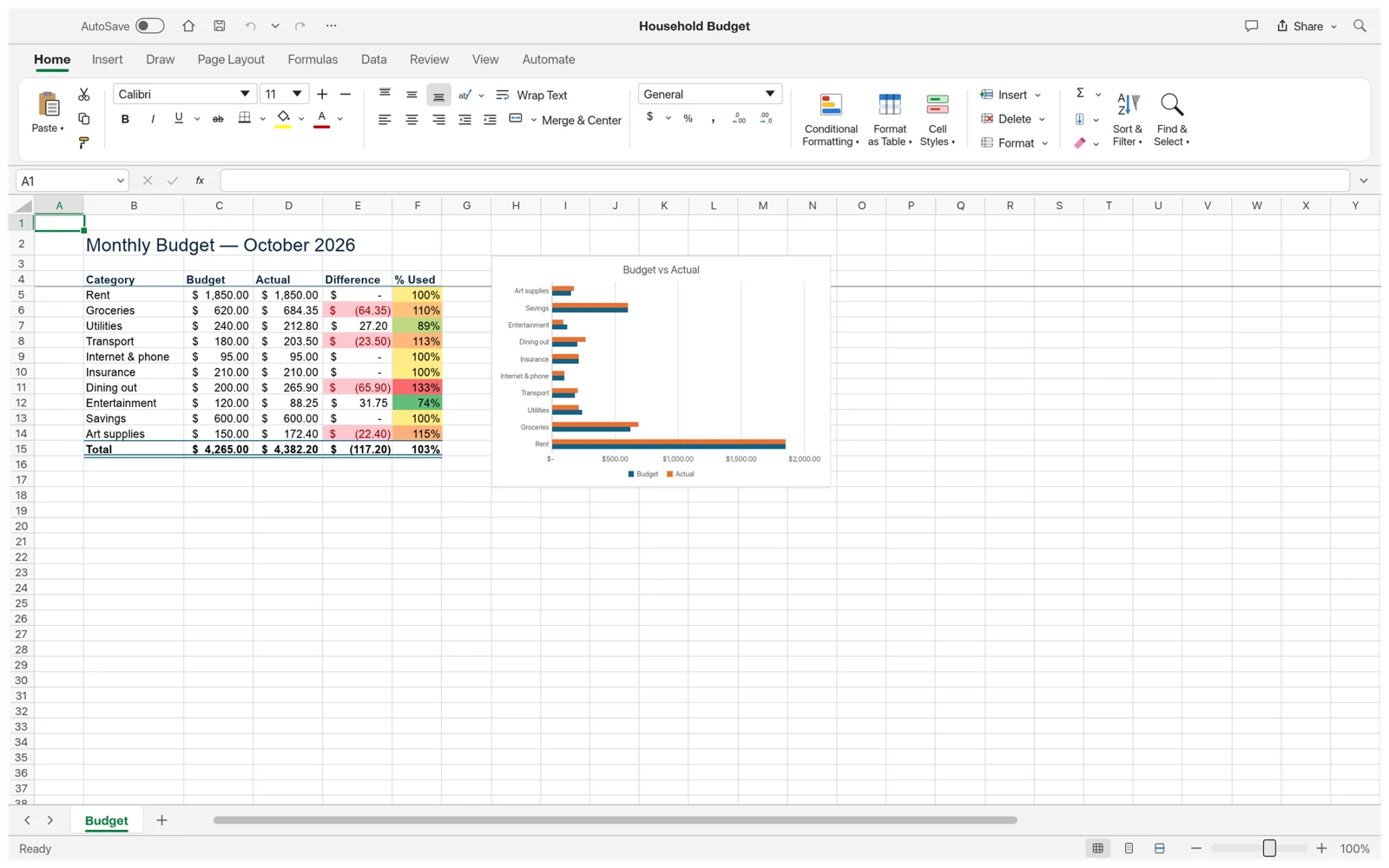
GridCraft online runs the spreadsheet editor in your browser. Start with a sample or open a local workbook, make a change, then save a downloaded copy before leaving. The link to the editor opens the app; it does not contain your workbook or synchronize your edits to another device.
Launch GridCraft in the browser
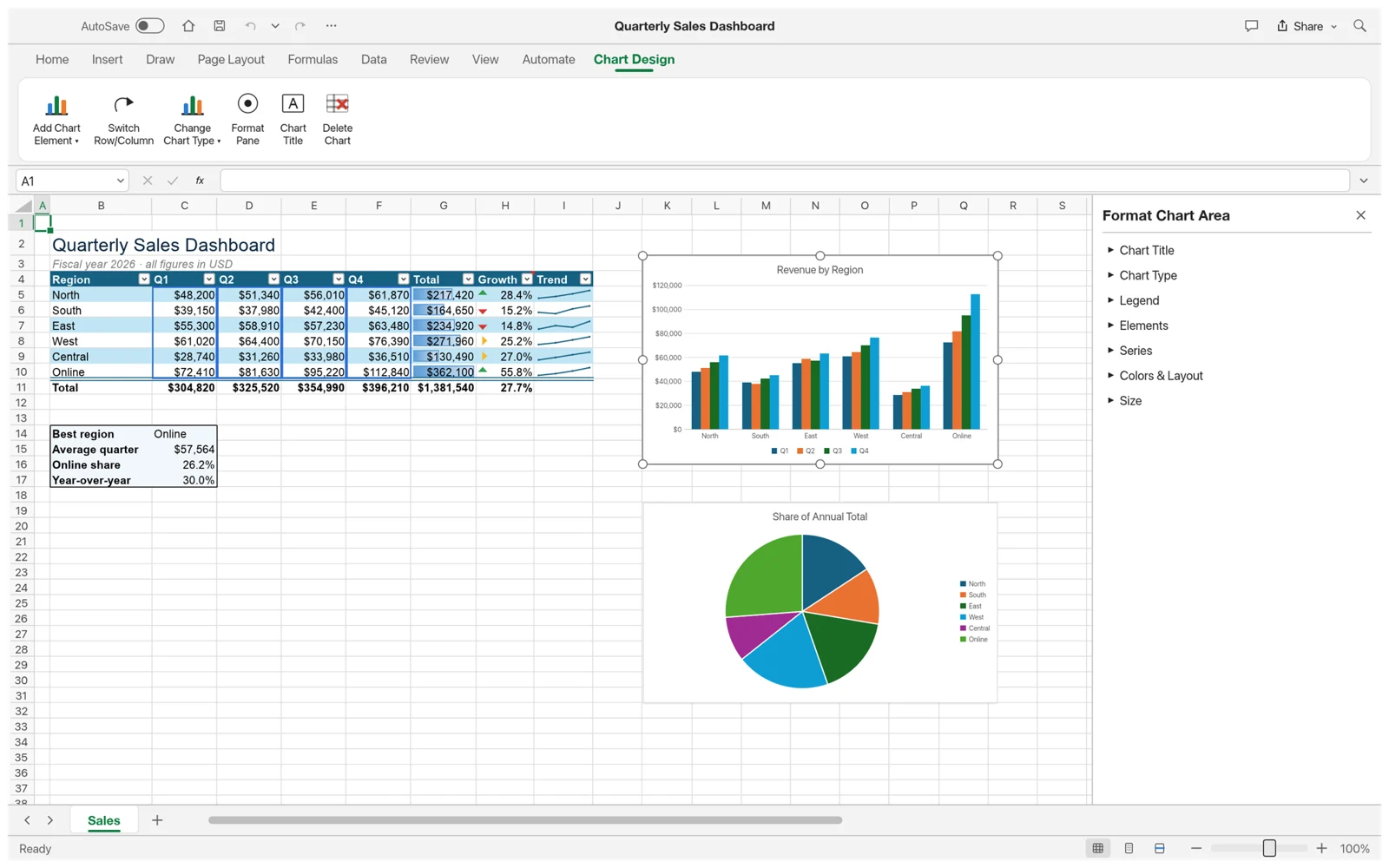
Open the online editor from the homepage. Choose Blank workbook or one of the three samples: Sales dashboard, Monthly budget or Grade tracker. A sample gives you meaningful data to inspect immediately; a blank workbook is better when you want to enter a small example of your own.
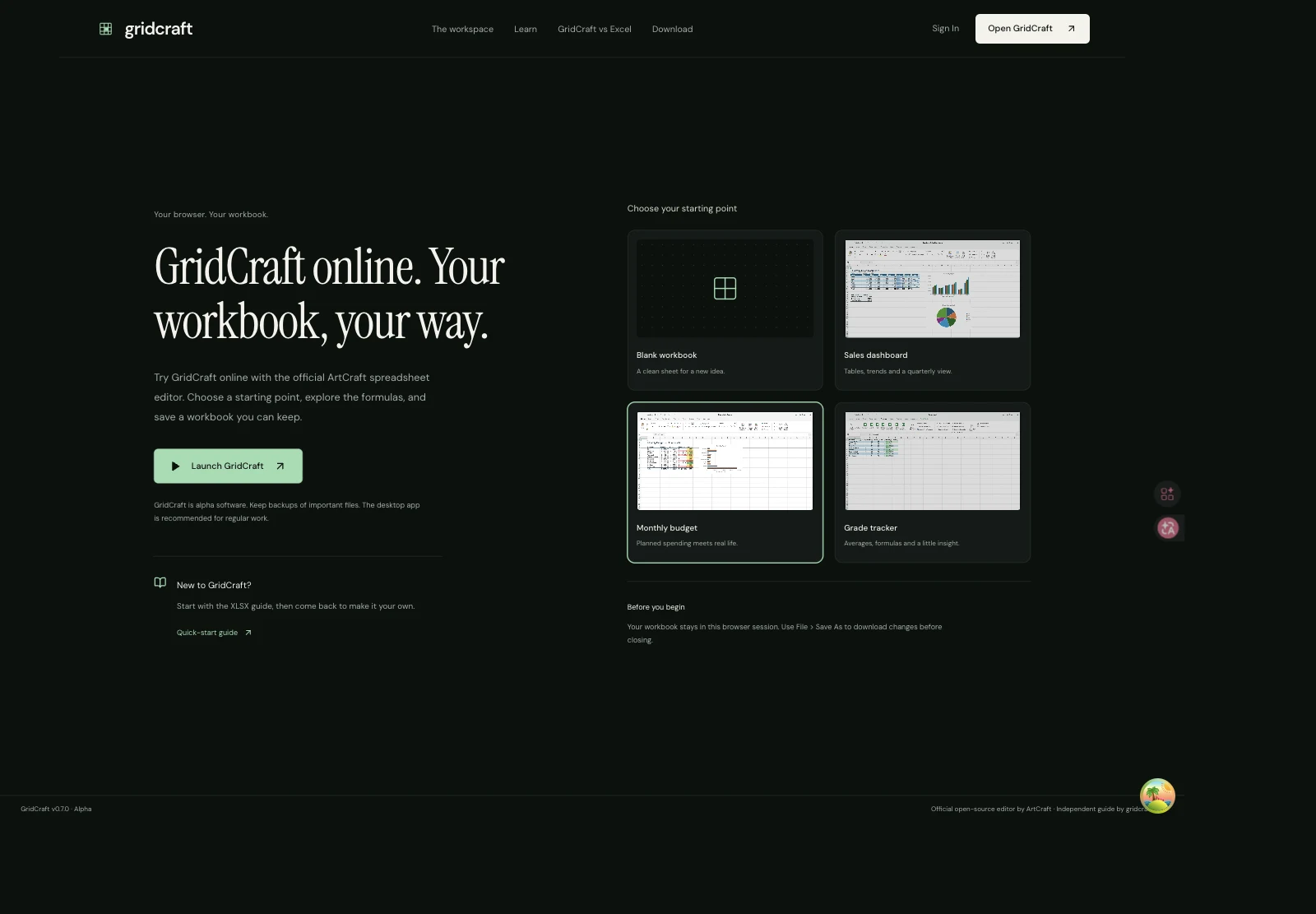
- Choose Monthly budget for this walkthrough, then select Launch GridCraft.
- Wait for the spreadsheet grid to appear. The first launch needs to load the browser app; a visible loading message is not yet an editable workbook.
- Click inside the spreadsheet before using its keyboard shortcuts. The editor runs in an embedded frame, so keyboard focus matters.
Open your file or make one small edit
To use your own spreadsheet, choose File → Open inside GridCraft and select a copy of an .xlsx workbook. The application opens the browser file picker. Keep the source file until you have checked the downloaded result. For more complex Excel files, follow the compatibility guide before editing important data.
For a first edit, select an ordinary input cell rather than a total. Note its value, change it by a small amount and press Enter. Select a related formula cell to inspect the result. If you accidentally replace a formula, use Undo and return to the input cell.
Save a file you can actually reopen
Do not use a refresh or a reopened editor URL as a saving test. A fresh session can start from the original sample. The downloaded workbook is the portable copy you can move to a desktop app, another browser or another person.
- Commit any active cell edit with Enter. Then choose File → Save As in the editor.
- Use an .xlsx filename for a normal workbook, for example budget-online-test.xlsx. The browser build saves by downloading a file rather than updating a cloud document.
- Check that the download completed. Find the newest file in your browser’s download list; repeated downloads can have similar names.
- Reopen the saved copy through File → Open and check the edited cell and a dependent total. Only close the session after you have a file with the changes you expect.
If the online editor does not start
The browser build needs supported graphics capabilities: WebGPU or WebGL2. A device or browser without either cannot display the editor. If one workbook fails but a sample works, investigate that file separately instead of repeatedly reloading the page with unsaved work.
| What you see | What to try |
|---|---|
| The launch screen stays visible | Select Launch GridCraft; choosing a sample alone does not start the app. |
| Loading never becomes a grid | Check the connection and try again. If the error panel offers Open with WebGL, use that fallback. |
| Keyboard commands affect the page | Click a cell inside the editor first. For more room, use the full-screen or open-in-a-tab control. |
| No file appears after saving | Inspect the browser’s download list and any blocked-download notice. Keep the workbook open while checking. |
| The workbook is too awkward on a phone | Use a desktop browser and keyboard, or choose a desktop build for regular work. |
A focused first ten minutes online
Use the first few minutes to find the input cells, formula bar and sheet tabs in the budget sample. Select a category amount and read the formula bar before changing it. This tells you whether you are looking at a typed input or a calculated result. If a total is based on other cells, edit those inputs instead of replacing the total with a number that only looks correct.
Next, make one change you can predict. For example, increase a single expense by 5 and check whether the relevant total increases by 5. If the workbook includes a budget-versus-actual comparison, identify which number represents the plan and which represents the expense. Changing the planned amount is a different action from changing the actual amount, even when the two columns use the same currency format.
Finish the session by saving a clearly named test file and reopening it. Keep your test deliberately small: one input, one calculated result and one saved copy. This establishes the whole online workflow before you spend time formatting a large table or importing a workbook whose dependencies you have not inspected. You should be able to point to the file that now contains your change.
Keep browser downloads easy to identify
Create a dedicated folder for the files you use in this exercise. Keep the original workbook there under a source name, and put each downloaded result under a name that describes its purpose. A filename such as workshop-review-02.xlsx is easier to recognize than several copies called Book1.xlsx. The exact naming pattern matters less than consistently distinguishing the untouched original from the file you just edited.
When a browser adds a number to a repeated download, do not assume the unnumbered file is the latest. Check the download time and reopen the file you actually intend to keep. If the file is going to another person, test that exact copy rather than a different version still open in the editor. A successful calculation in memory does not verify the contents of an older file sitting in a downloads folder.
For a longer session, save at meaningful checkpoints: after importing and checking a file, after making the main edits, and before closing or switching devices. This is a manual file workflow. Treat an open tab as a workspace, not a backup. If you need a continuously shared document with other editors, first choose a workflow designed for that requirement instead of forwarding this editor URL.
Separate a loading problem from a file problem
If the application fails before a sample grid appears, begin with the browser environment. Confirm that the connection can load the application, check the displayed error, and use the offered WebGL fallback if appropriate. Retrying with a small sample is more informative than repeatedly opening a complex workbook while the graphics runtime itself is not starting. The fallback is a renderer choice, not a repair tool for workbook data.
If a sample works but your own file does not, preserve the original and inspect the file type and size. Try a smaller copy with only the relevant sheet, or a simple XLSX workbook whose result you know. Do not diagnose every file failure as a browser problem. The compatibility guide explains why a supported extension still does not guarantee that every advanced object or calculation will behave as expected.
If the file opens but interaction feels slow, keep the test controlled. Compare a small sample with the same workbook, close unrelated heavy tabs, and note the action that stalls: launch, import, recalculation or scrolling. Those are different operations. Record the browser, device and GridCraft version when investigating so that a future test compares the same conditions rather than a different setup.
Questions about online use
Do I have to install GridCraft first?
No desktop installation is needed for the browser editor. The browser still needs to load the application files before the workspace starts.
Will my workbook appear on another device?
Not from the editor URL alone. Save and transfer the workbook file, then open that file on the other device. Signing into this website is not a substitute for saving a workbook.
Is the browser editor the newest GridCraft release?
This site currently bundles the official v0.7.0 web build. The upstream project can publish newer releases independently; use the release page to check other versions.
Can I return later using the same editor link?
You can use the link to open the application again, but keep your saved workbook separately. To continue from your own changes, open the downloaded file in the new session. A sample parameter in the URL chooses a starting sample; it is not a reference to your edited copy.
Why does a keyboard shortcut do nothing?
First click inside the spreadsheet and make sure a dialog or text-editing control is not using the keyboard. Some shortcuts can also be reserved by the browser or operating system. Use the visible menu command when the shortcut is unavailable, and avoid testing destructive commands on your only copy.
Sources and version notes
Feature details refer to the linked version. Follow the upstream release notes when using a different build.