
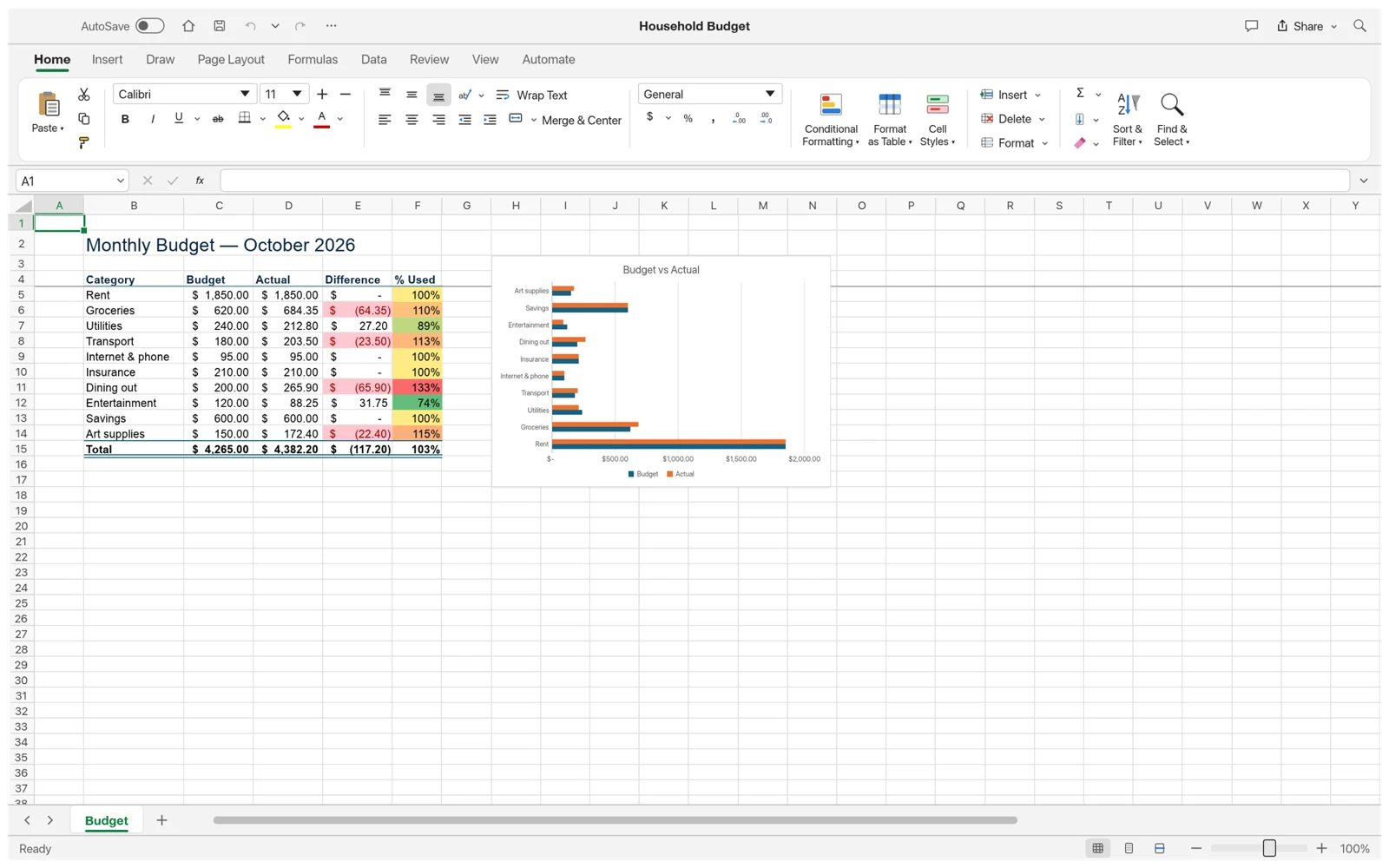
The easiest way to learn GridCraft is to make one small change in a workbook you understand. A familiar expense table lets you concentrate on the editor instead of guessing what the data means. This guide uses the official ArtCraft browser build hosted on this site.
Before you start
Keep your original file unchanged and choose a working copy. An XLSX workbook can contain formulas, styles, charts and multiple worksheets, so a successful import deserves more than a quick glance. Check a few values that you already know. For a first session, you can also open the budget sample without uploading any file. A desktop browser with a keyboard gives you more room for the ribbon and worksheet.
Try it in a workbook
- Keep the original workbook as a backup. In the browser workspace, use the file-open control and select a .xlsx file from your computer.
- Choose a worksheet tab. Click a cell and type a value, or double-click a cell to edit its current content.
- Select a number cell and inspect its formula in the formula bar. Check a few important totals against your original workbook.
- Use the save or export control to download an XLSX copy. Reopen that file and check your edits before replacing your original.
A1: Category       B1: Amount
A2: Groceries      B2: 120
A3: Transport      B3: 45
A4: Total B4: =SUM(B2:B3)Check your work, then go further
Use the example below to build a tiny expense table of your own. The formula in B4 should return 165. Change the groceries amount and check that the total follows. When saving, choose File > Save As, confirm the XLSX format and use the download control. Reopen the downloaded file before closing the original session. If you later exchange it with Excel users, inspect the reopened copy in Excel too, especially its formulas and formatting.
The browser workspace processes files locally. Closing or refreshing the tab can discard unsaved changes.