
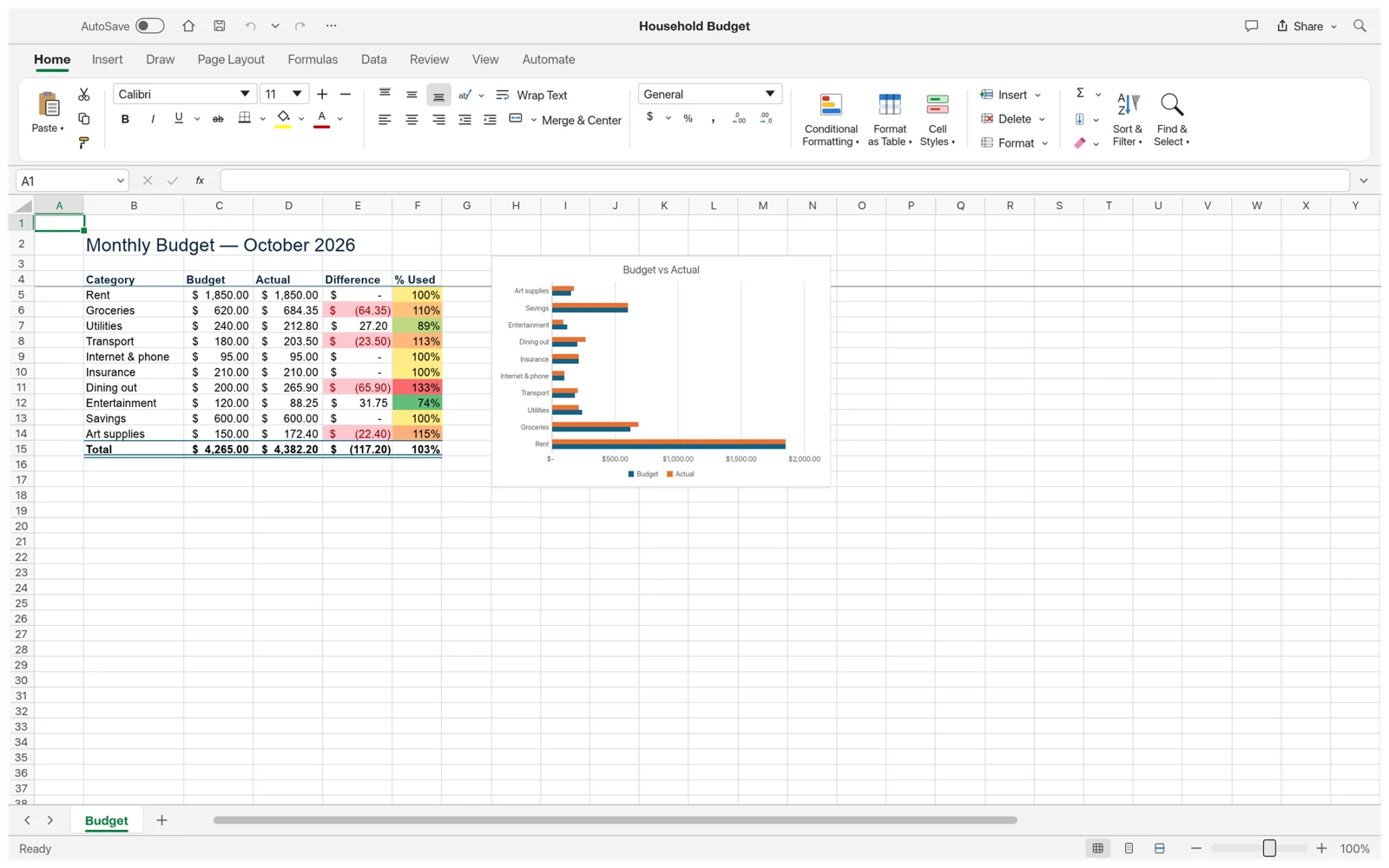
GridCraft can open and save Excel .xlsx workbooks. The useful question is whether your particular workbook survives the trip: its formulas, formatting and charts need checking after a save and reopen. This guide gives you a repeatable way to make that check without replacing your original.
Start with a copy and a clear baseline
Choose a small workbook you understand: a spending sheet, an inventory list or a simple project tracker. Before opening it in another app, record the sheet names, one important total and one representative formula. A screenshot of a chart or formatted table also gives you something concrete to compare.
Keep the original file in a separate folder. Call your working copy something like budget-gridcraft-test.xlsx. The browser editor on this site is pinned to v0.7.0, an alpha release; a newer desktop release may behave differently. Match your test to the version you actually intend to use.
Open, edit and save an Excel workbook
- Open the GridCraft editor and launch the workspace. Choose File → Open and select your test .xlsx file. The web build uses the browser’s file picker; opening a file does not create a shared cloud document.
- Check the sheet tabs and your baseline total before editing. Select a formula cell and inspect its formula bar, rather than checking only the number displayed in the grid.
- Make one controlled change, such as increasing a known expense by 10. Verify that the dependent total changes by the same amount. Start with a simple reference before testing a complex formula.
- Choose File → Save As and save a new .xlsx copy. In the browser, this downloads a file. Check your downloads folder and the actual filename; a second save may produce a numbered copy.
- Reopen the downloaded copy in Excel. Compare the changed total, the formula itself, the number formats and any charts you rely on. If Excel offers to repair the file, keep the original and investigate before using the exported copy.
A five-cell formula check
For a clean test, create the following cells in a blank workbook. B4 should initially show 165 and B5 should show Review. Change B2 from 120 to 130: B4 should become 175 while B5 stays Review. Repeat the check after saving and reopening. This tests a range formula, a dependent formula and recalculation with known results.
B2: 120
B3: 45
B4: =SUM(B2:B3)
B5: =IF(B4>150,"Review","OK")
B6: =B4-150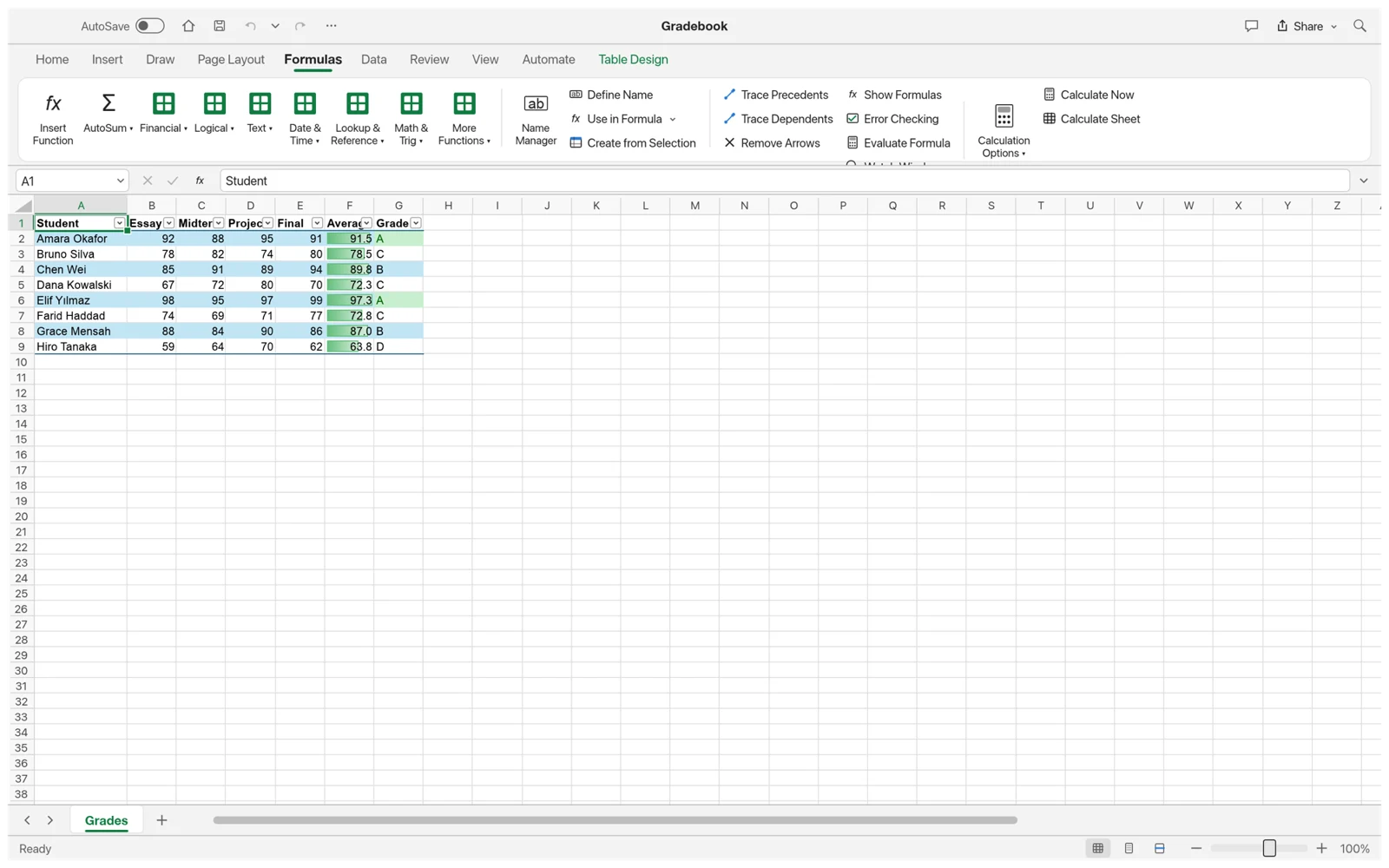
File extensions change what survives
| Format | What to expect in v0.7.0 |
|---|---|
| .xlsx | Read and write support. Validate formulas and workbook features after export; full Excel fidelity is not guaranteed. |
| .xlsm | The documented macro-enabled save path preserves VBA without running it. Do not switch to .xlsx if the VBA project must remain. |
| .xls | Partial legacy import; save the result as .xlsx and inspect styles and objects. |
| .xlsb / .ods | Worksheet data import using saved formula results. Live formulas, formatting and objects are not preserved as a full workbook conversion. |
| .csv / .tsv | Useful for flat data exchange, not for preserving a workbook’s sheets, styles or charts. |
Check more than the total
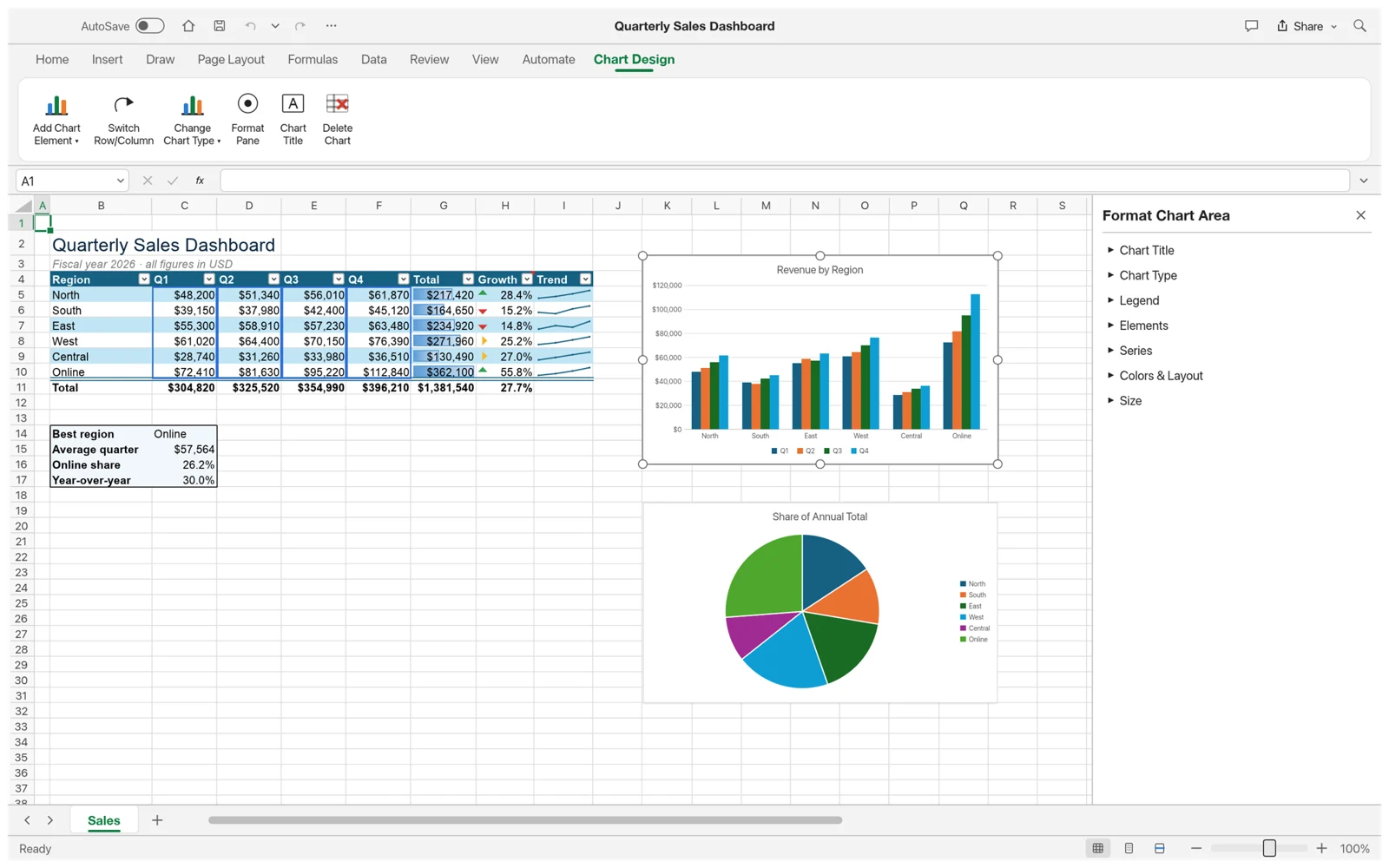
A workbook can calculate the right total while still losing an important presentation detail. Compare chart categories, axis labels, legend entries and the data range. For PivotTables, compare the source data, filters, subtotals and grand total. A working screenshot is a reference, not a guarantee that every imported Excel chart will look the same.
Also inspect dates, percentages, leading zeros in identifiers and hidden sheets. If the workbook depends on external connections, refresh behavior or a data model, test those requirements separately. Preserving a file part is different from executing the workflow behind it.
Reconcile a real workbook in three passes
First, check structure. Count the worksheets and compare their names and order with the original. Look for hidden sheets, named ranges and the source range of any summary. A missing supporting sheet may not be obvious on the first tab. Make a short checklist of the parts the workbook needs to do its job, then inspect those parts before testing individual formulas.
Second, check meaning. Dates should still be dates, a product code such as 00127 should still identify the same product, and a percentage should keep the same scale. Compare a few ordinary rows and the edge cases: blanks, zero values, negative amounts and the last populated row. A total alone cannot tell you whether a code lost its leading zeros or whether one category moved into the wrong group.
Third, check behavior. Change a source input and see whether the relevant summary updates. Remove your test change, save and reopen, then repeat one calculation. Record the source application, source version, GridCraft version and filename with the result. That small record makes it possible to reproduce a difference instead of guessing which of several downloaded copies you checked.
Workbook: inventory-test.xlsx
Baseline total: 240
Change: increase one quantity by 5
Expected total: 245
Check: GridCraft → saved XLSX → ExcelDiagnose a mismatch before changing more cells
If a formula produces an unexpected value, compare the formula text first. Check its range endpoints, sheet reference and whether a supposed number is stored as text. Then reduce the calculation to a smaller example with two or three inputs. If the smaller example works but the original does not, add the original dependencies back one at a time. This helps distinguish an input problem from a function or reference problem.
If the numbers agree but the appearance differs, inspect the underlying values separately from their display format. A stored value of 0.25 and a displayed value of 25% can mean the same thing. A date shown as a serial number may need a number format; a date that represents a different day needs a deeper check. Do not repair a display difference by overwriting a formula with its current result.
If the exported workbook triggers an Excel repair message, retain the original file, the exported file and the exact message. Try reproducing the issue in a copy with unrelated sheets removed, but do not remove material from your only original. A small, reproducible file is more useful for troubleshooting than a vague description that a large workbook looks wrong.
Build a predictable file-exchange routine
Agree on a handoff format before editing. For a normal multi-sheet workbook, use XLSX so that formulas and workbook structure have a chance to survive. Use CSV only when the recipient needs a plain data table and understands that formulas, styles and additional sheets are not the deliverable. Changing the file extension in a filename is not a conversion method; use the application’s save or export option.
Use a simple version naming rule such as inventory-source.xlsx, inventory-edited-01.xlsx and inventory-checked-01.xlsx. Keep the checked version separate from the working copy. When you send the file to someone else, describe what changed and which checks passed. This is particularly helpful if several people use different spreadsheet applications and a downloaded copy can otherwise be mistaken for the current shared version.
Common Excel compatibility questions
Does GridCraft run Excel VBA macros?
No. Keeping a VBA project in a macro-enabled file does not make its buttons, events or automation run in GridCraft. Use a supported Excel desktop workflow when execution of existing VBA is required.
Is XLSX support the same as complete Excel compatibility?
No. File support describes what an app can read and write. Compatibility also includes calculation behavior, formatting, advanced objects and how another application reads the saved result. Check the actual workbook, not just its extension.
Can I replace the original after one successful test?
Keep the original until you have checked the specific features used in the real task. A simple SUM test confirms only that example. It does not validate every chart, macro-enabled package, external reference or advanced formula in a different workbook. Keep a backup as part of the normal editing routine.
What if I only need the values from an old workbook?
A data-only import may be enough if you deliberately want a snapshot. Before using it, check whether formula results were recalculated and saved in the source app. Label the imported file as a snapshot, because a displayed total that came from a saved result will not behave like a live formula.
Sources and version notes
Feature details refer to the linked version. Follow the upstream release notes when using a different build.